
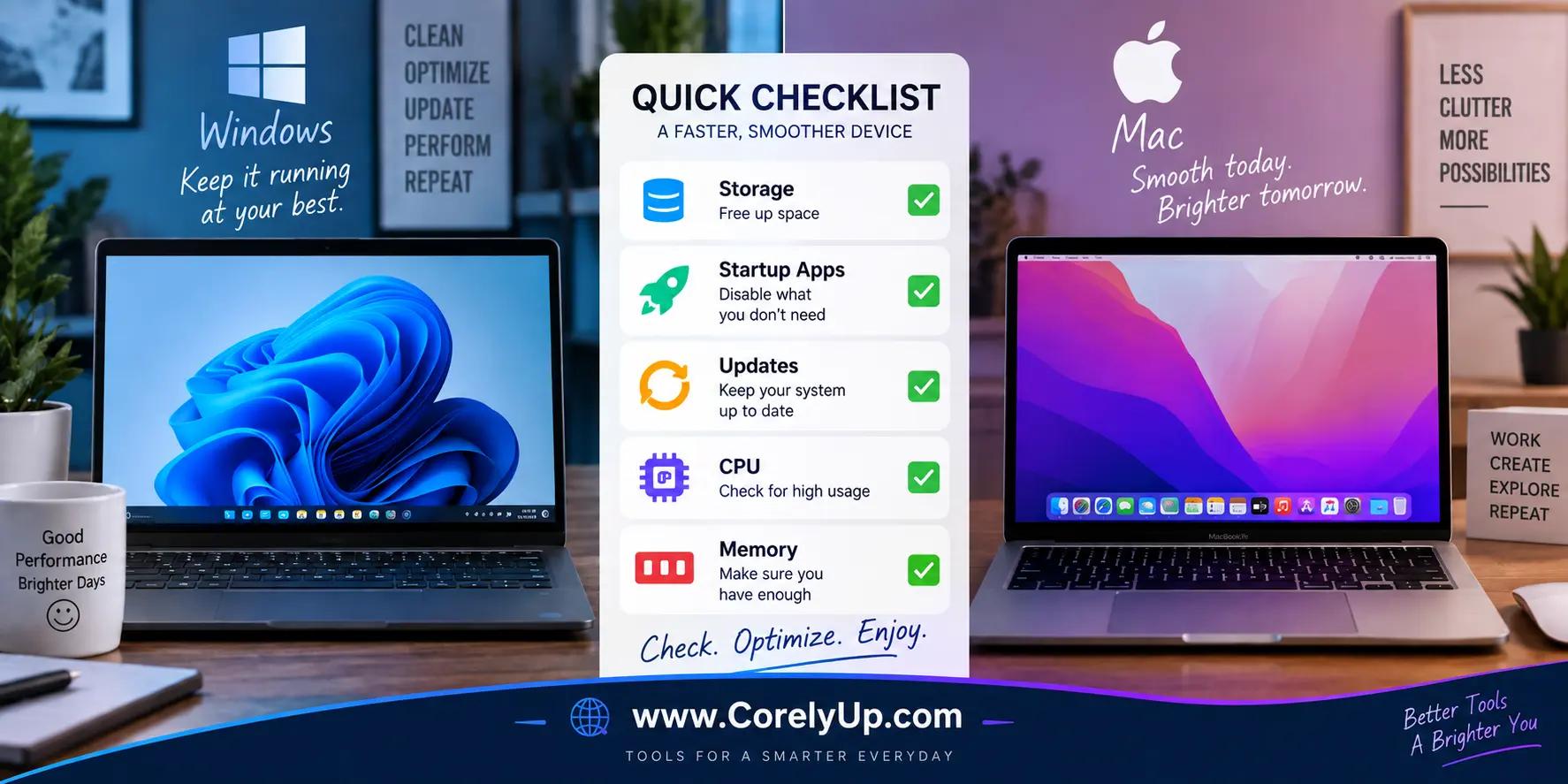
Most laptop slowdowns have a specific, fixable cause. The safest way to speed things up is to diagnose that cause before deleting files, installing "cleaner" software, or changing advanced settings.
Start by finding out why your laptop is slow
Close applications you're not using, restart the computer, and check storage and resource use before making any bigger changes.
Microsoft lists limited storage, excessive startup and background activity, outdated software, and aging hardware among the most common causes of poor PC performance, and recommends checking CPU, memory, and disk use rather than assuming one fix solves every slow computer.
On a Mac, Activity Monitor shows which processes are consuming CPU and memory, and its Memory view includes a Memory Pressure indicator — a more reliable signal than simply checking how much RAM is "free," since macOS deliberately uses available memory for caching.
A useful first test: restart the laptop, open only the application that normally feels slow, and observe it in isolation. If performance is fine right after a restart but degrades as more programs open, background apps or memory pressure are likely contributing.
Check storage before installing anything
Low available storage can contribute to poor performance, and both Windows and macOS include built-in storage tools — there's rarely a need for third-party software.
- On Windows 11: go to Settings > System > Storage to see what's using space, and turn on Storage Sense to clear temporary files automatically.
- On macOS (Ventura 13 or later): go to System Settings > General > Storage for the same kind of breakdown.
Review large files before deleting them — old installers, downloads, unused apps, and anything already backed up elsewhere are reasonable candidates. Don't delete unfamiliar system folders, and confirm your backup actually contains a file before removing the original.
Reduce unnecessary startup activity
A program that launches at every sign-in can consume resources even when you're not using it.
- On Windows 11: open Task Manager > Startup apps and review what launches automatically.
- On macOS: go to System Settings > General > Login Items & Extensions to review what opens at login.
Don't disable an entry just because the name is unfamiliar — check the vendor's documentation first, since security software, accessibility tools, sync services, and workplace management apps often have legitimate background functions. Change one or two items at a time, restart, and retest, so the change is easy to reverse.
Use Task Manager or Activity Monitor to catch the real culprit
Diagnose during the slowdown, not after it.
- On Windows, Task Manager's Processes and Performance tabs show live CPU, memory, and disk activity.
- On a Mac, Activity Monitor's CPU and Memory tabs, plus the Memory Pressure indicator, show the same picture.
Don't force-quit everything near the top of the list — some system processes are briefly busy for legitimate reasons. Look instead for a pattern: one application repeatedly consuming heavy resources whenever the laptop feels slow. If you find one, update it, reduce its workload, or check the developer's support page.
Install operating system updates
Updates often include bug fixes, security patches, driver improvements, and compatibility changes that directly affect speed.
- On Windows 11: go to Settings > Windows Update.
- On macOS: go to System Settings > General > Software Update. Apple recommends backing up before installing new system software.
Menu labels can vary slightly between operating-system versions, so follow the equivalent settings shown on your current release.
Rule out malware on a slow Windows PC
A sudden, unexplained slowdown can sometimes be linked to malicious software. Microsoft notes that malware can consume CPU and disk resources and includes a security scan as a standard step in its PC performance checklist.
On Windows 11: go to Settings > Privacy & security > Windows Security > Virus & threat protection and run a scan.
Be cautious about downloading an unfamiliar "PC booster" or registry cleaner, especially from an ad claiming your computer has hundreds of errors. Stick to built-in tools and documentation from the software's original vendor.
Know when optimization won't fix the problem
Software troubleshooting has limits. Microsoft notes that older machines may not see significant improvement from software changes alone.
Signs it may be a hardware issue rather than a software one:
- Repeated high memory pressure even with few apps open
- Storage capacity that stays maxed out despite regular cleanup
- Poor battery health or a laptop that runs hot under light use
- Software requirements that now exceed what the machine was built for
Before buying replacement parts, confirm the laptop model actually supports the upgrade — some laptops don't have user-replaceable memory or storage. Use the manufacturer's documentation or an authorized repair provider.
Windows 10 reached the end of free security updates and technical support on October 14, 2025. If a laptop can't move to a currently supported platform, that's a broader security and replacement decision — not something a speed tweak can solve.
Safe troubleshooting order
Work through these steps in order, retesting after each one, instead of changing several things at once:
- Restart the laptop and retest
- Check available storage
- Review CPU, memory, and disk activity
- Review and trim startup items
- Install available operating system updates
- Run a malware scan (Windows)
- Reassess — if the problem persists, consider application-specific fixes, a hardware upgrade, or professional support
This order won't guarantee a faster laptop, but it isolates the cause while keeping every change easy to reverse.