
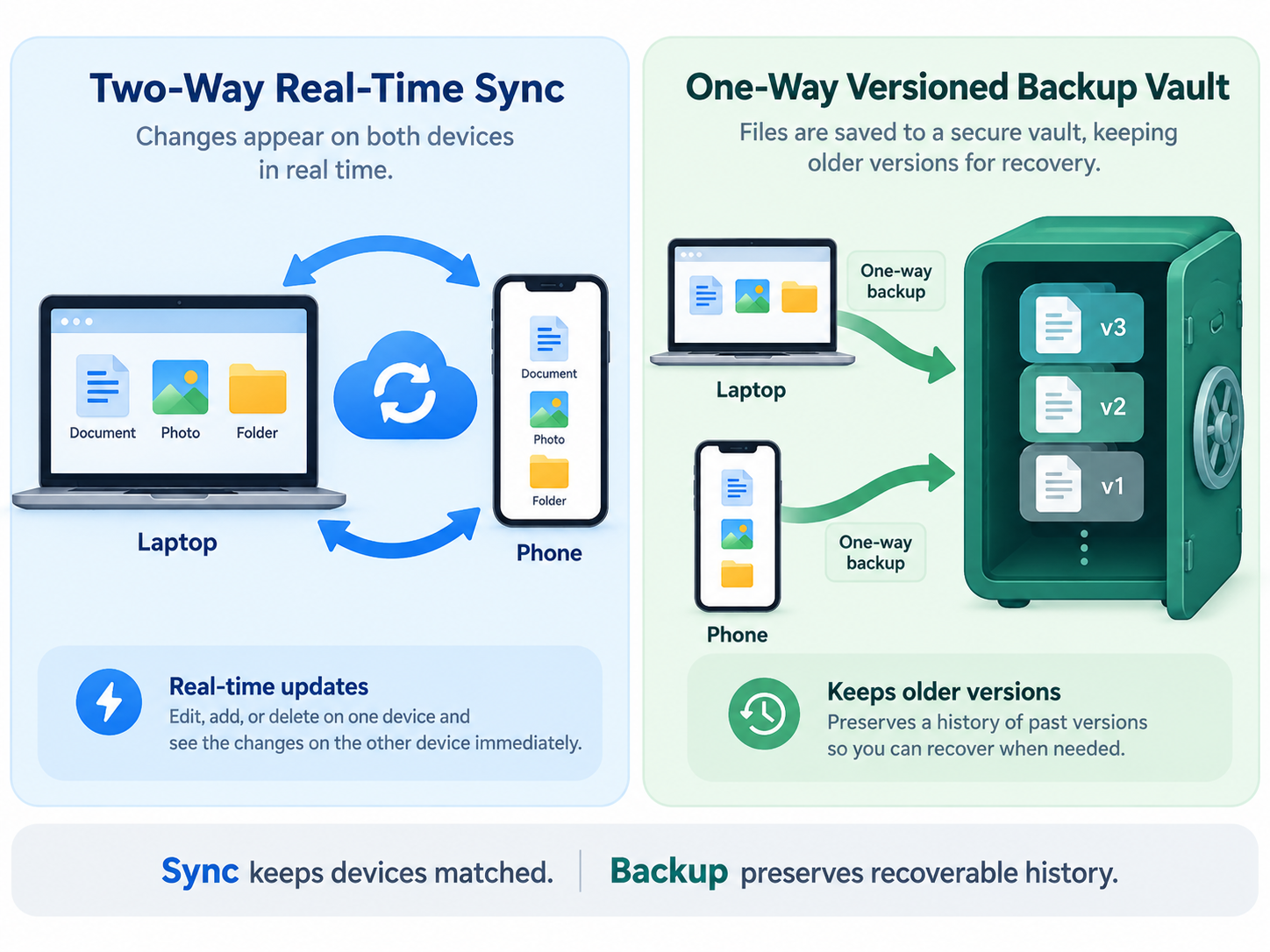
What is the difference between cloud sync and cloud backup?
Cloud synchronization (sync) keeps the same current working files mirrored across two or more devices and the cloud in real time—so when you edit, overwrite, or delete a file on your laptop, that exact change is automatically replicated everywhere else. Cloud backup creates an independent, point-in-time historical copy of your data designed specifically for restoration if your original files are lost, corrupted, accidentally deleted, or encrypted by ransomware.
Because sync prioritizes immediate access and consistency rather than historical isolation, relying on a synced folder alone is not a complete backup strategy. If you are evaluating household storage plans, read our guide on how to compare family cloud storage for privacy and recovery.
Cloud sync vs. cloud backup at a glance
Both the Cybersecurity and Infrastructure Security Agency (CISA) Data Backup Options Guide and the National Institute of Standards and Technology (NIST) Ransomware Protection and Response Guidance emphasize that users should understand how changes, deletions, and malware affect connected storage and rolling backups.
| Feature | Cloud synchronization (Sync) | Cloud backup |
|---|---|---|
| Primary goal | Access the latest file version across multiple devices | Recover files after hardware failure, mistake, or attack |
| Direction of changes | Two-way (mirroring changes across devices and cloud) | One-way (copying source data into a protected archive) |
| What happens if you delete a local file? | Deleted across all synced devices (moved to cloud trash for a limited window) | Kept safely in your backup history according to retention rules |
| What happens if ransomware encrypts a local file? | The encrypted file can sync to the cloud and overwrite the clean working copy | Earlier clean snapshots remain restorable if version history or air-gapped copies exist |
| Typical folder scope | Selected sync folders (such as Desktop, Documents, or Photos) | Full system, selected drives, or structured point-in-time snapshots |
| Best everyday use | Collaborating, switching between phone and laptop, live document editing | Protecting irreplaceable photos, tax records, and project archives |
Why "synced to the cloud" does not always mean "backed up"
A synced cloud drive (such as iCloud Drive, Google Drive for Desktop, Microsoft OneDrive, or Dropbox) solves one failure mode well: single-device hardware loss. If your laptop is stolen or its drive fails suddenly, the files inside your synced folders are still waiting in your cloud account.
However, synchronization creates three recovery risks that a dedicated backup avoids:
Propagated human error: If you accidentally delete a folder on your desktop to free up space—or if a family member deletes files inside a shared folder—sync immediately removes those files from your cloud drive and other devices. Once the provider's applicable trash retention window expires, the files may be permanently gone.
Overwritten corruption and ransomware: As noted in CISA's guidance on protecting data stored on devices, rolling or connected updates can spread corruption and malware from primary files to connected storage. If a spreadsheet becomes corrupted or ransomware encrypts files inside your local sync folder, the sync client treats the damaged file as a legitimate update and uploads it over your cloud copy unless multi-version rollback or snapshot recovery is available.
Account lockout: If your single cloud account is compromised or suspended because you lost your password and two-factor method, you can lose access to your synced files simultaneously. Securing your cloud account with a strong unique password from the Secure Password Generator and storing recovery codes safely—as outlined in our guide to password managers for families—reduces lockout risk.
How to follow the 3-2-1 backup principle in everyday life
To protect files that you cannot recreate—such as family photos, financial records, or key work archives—CISA's Data Backup Options publication recommends the 3-2-1 backup rule:
3 copies of important data: Your primary working copy plus two backup copies.
2 different storage types or media: For example, your computer's internal drive plus an external solid-state/hard drive (SSD/HDD).
1 copy stored offsite: Keep one copy at a different physical location. Also keep an offline or otherwise isolated copy to limit ransomware exposure; an unplugged drive beside the computer is isolated but not offsite.
If you are specifically protecting smartphone camera libraries, follow our step-by-step guide on how to back up iPhone photos without losing originals and review how iCloud Family Sharing handles storage and privacy.
Checklist: Verify your sync and backup setup in 10 minutes
Before assuming your files are safe, test your current workflow against these five checks:
Confirm which folders are actually included: Check whether folders outside your main sync directory (such as Downloads or project folders on a secondary drive) are excluded.
Check whether files are stored locally or "online-only": If "Files On-Demand" or "Optimize Mac Storage" is enabled, deleting the cloud copy also removes the only full copy of the file.
Inspect version history and trash retention: Confirm how many days your provider retains deleted files (commonly 30 days) and whether earlier file versions can be restored after an overwrite.
Disconnect your external backup drive after each backup: An external drive left plugged into your computer 24/7 acts like another local folder and can be wiped by the same malware or power surge as your laptop.
Run a small test restore: Pick one folder and restore it to a test location to confirm you know the steps before an emergency happens.