
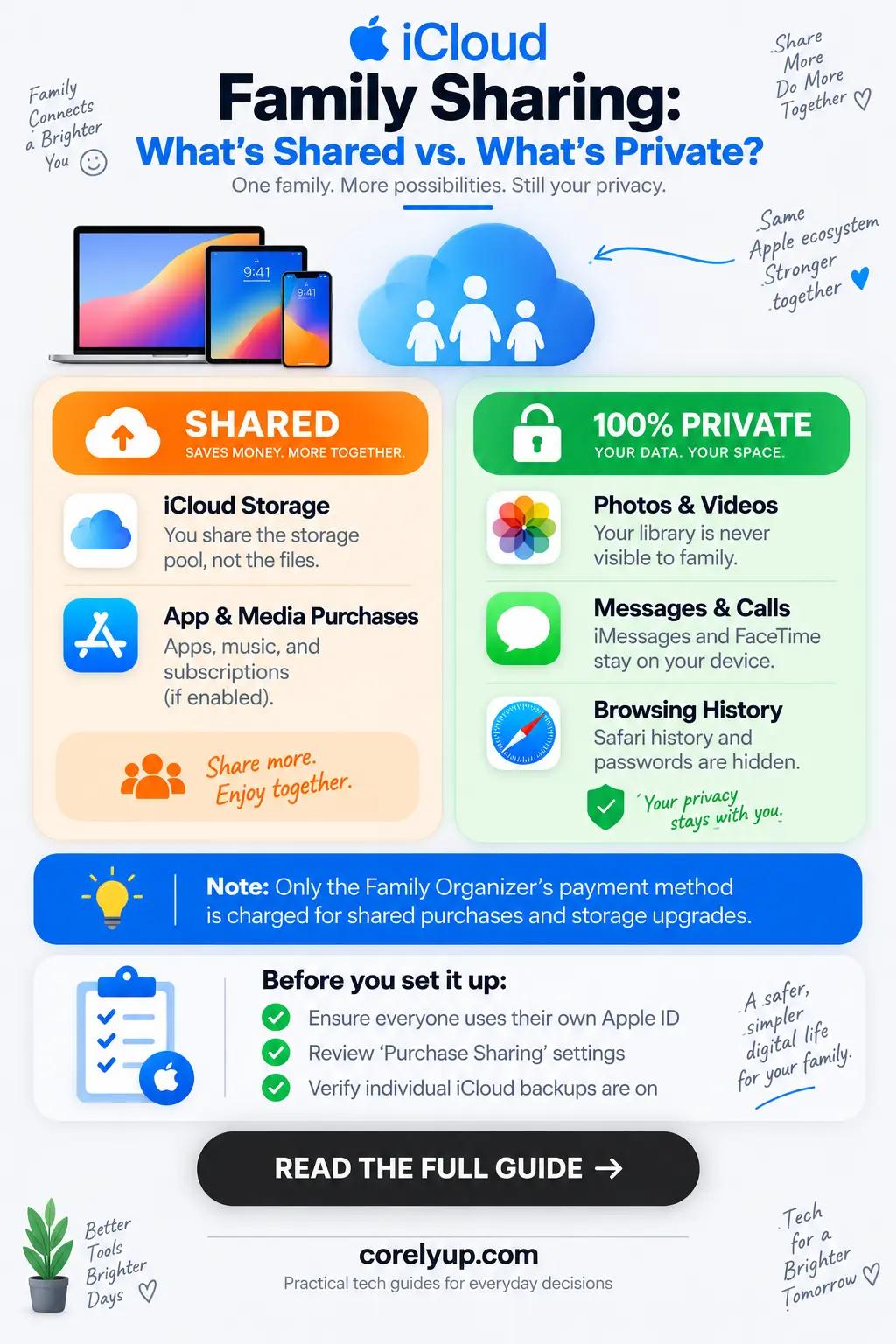
If I share iCloud storage with my family, can they see my photos or files?
No—sharing an iCloud+ storage plan with your family only shares storage space (gigabytes or terabytes), not your personal photos, messages, documents, or device backups. When you join an Apple Family Sharing group and use a shared iCloud+ subscription, up to six family members draw from one common storage quota (50 GB, 200 GB, 2 TB, 6 TB, or 12 TB) while keeping their own separate, private Apple Accounts. Other family members cannot see your camera roll, iCloud Drive folders, text messages, browser history, or notes unless you explicitly place items into a shared album, shared folder, or iCloud Shared Photo Library.
If you are setting up household accounts and want to share streaming or Wi-Fi logins without exposing personal passwords, pair your Apple Account with a dedicated family vault from our guide to the best password managers for families and generate strong account credentials locally in the Secure Password Generator.
At a glance: what iCloud Family Sharing shares vs. what stays private
Many iPhone, iPad, and Mac users hesitate to turn on iCloud+ Family Sharing because they worry that "shared storage" works like one giant communal folder. Under Apple's architecture, storage capacity is pooled, while account data stays isolated by Apple Account:
| Data or Feature | Can Family Members See Your Private Content? | What Actually Gets Shared? | How to Control or Change It |
|---|---|---|---|
| iCloud+ Storage Space (50 GB to 12 TB) | No—members only see how many GB/TB each person uses in the bar chart, never the files themselves | Total gigabyte/terabyte quota across up to 6 Apple Accounts | Settings > Family > Subscriptions > iCloud+ |
| Personal iCloud Photos (Main Camera Roll) | No—your personal photo library stays 100% private to your Apple Account | Nothing is shared unless you turn on Shared Library or add photos to Shared Albums | Settings > [Your Name] > iCloud > Photos |
| iCloud Drive Files & Desktop/Documents | No—your private folders and device backups cannot be browsed by anyone else | Only specific files or folders where you tap Share and invite people | Share button inside the Files app or Mac Finder |
| Messages, Mail, Notes & Safari History | No—never visible to family members or the family organizer | Individual notes or reminders only if you explicitly invite a collaborator | Managed inside your individual Apple Account |
| App Store, Apple TV & Book Purchases | Optional—they can see and download eligible past purchases only if Purchase Sharing is turned on | Eligible apps, books, and media; you can still hide individual apps at any time | Settings > Family > Purchase Sharing |
| Device & Personal Location | Optional—off unless you choose to share your location with specific family members | Live device location in the Find My app | Settings > Family > Location Sharing |
| Saved Passwords & Passkeys | No—your personal iCloud Keychain remains private | Only logins you explicitly move into a Shared Password Group | Apple Passwords app > New Shared Group |
How shared iCloud+ storage actually works (Up to 6 members)
According to Apple's iCloud+ Family Sharing documentation, one adult Family Organizer can invite up to five other family members (six people total) to share a single iCloud+ plan.
Think of a shared 2 TB iCloud+ plan like an apartment building sharing one water tank: every apartment draws water from the same main tank, and the building manager can see how many gallons each unit used on the meter, but no neighbor can see inside your apartment.
How to turn on or join Family iCloud+ storage on iPhone or iPad
Open the Settings app and tap Family (right below your Apple Account name).
Tap Subscriptions, then tap iCloud+.
If you are the organizer, follow the prompt to Share iCloud+ with Family. If you are a family member joining an existing plan, tap Use Family Storage.
If a family member was already paying for their own separate iCloud+ plan, switching to the family plan automatically cancels their individual subscription and refunds the remaining prorated balance.
Does Family Sharing share your photos automatically?
No. Joining a Family Sharing group or switching to shared iCloud+ storage does not merge or expose anyone's personal photo library. Apple keeps personal photos separate from two optional sharing tools documented in Apple's iCloud Shared Photo Library guide:
Private Personal Library (Default): Every photo and screenshot you take stays inside your private Personal Library. Nobody in your Family Sharing group can view it.
iCloud Shared Photo Library (Opt-in): A separate, collaborative library for up to 6 people where participants choose whether to share all past photos, photos starting from a specific date or containing specific people, or only photos moved manually. Photos in the Shared Library count toward the library creator's iCloud+ storage.
Shared Albums (Opt-in): Lightweight albums where you manually pick specific vacation or event photos to share with selected contacts.
Before deleting photos or turning off photo sync, read our guide on cloud storage sync vs. backup so you do not accidentally remove originals across synced devices.
How Purchase Sharing and billing work (and why organizers should check it first)
In Apple Family Sharing, iCloud+ storage sharing and Purchase Sharing are two completely separate switches:
You can share iCloud+ storage WITHOUT turning on Purchase Sharing: If you only want to share a 200 GB or 2 TB storage plan so everyone's iPhones can back up, leave Purchase Sharing turned Off. Everyone will continue paying for their own App Store apps and in-app purchases with their own payment method.
What happens when Purchase Sharing IS turned on: All eligible App Store, iTunes, Apple Books, and Apple TV purchases made by adult and child family members are billed directly to the Family Organizer's payment method on file (unless the member has Apple Account gift card balance). In addition, family members can browse and download each other's past eligible purchases unless you hide specific items in the App Store.
Location sharing and child account controls
Joining a family group does not force continuous 24/7 GPS tracking on adult members. Under Settings > Family > Location Sharing, each adult member can toggle location sharing on or off for individual family members, and choose which specific iPhone or iPad broadcasts their location. Even if you keep daily location sharing off, Apple's Find My network can still help family members locate a lost or stolen device when needed.
For children under 13 (or the applicable age in your country), the Family Organizer and designated Parents/Guardians can configure Screen Time and Ask to Buy, which requires organizer approval before a child downloads free or paid apps.
5-minute privacy checklist before joining an iCloud Family group
Run through these five checks on your iPhone, iPad, or Mac right after joining a family group:
Confirm which Apple Account is signed in: Go to Settings > [Your Name] and verify you are using your own personal Apple Account—never sign two people into the same Apple Account.
Check iCloud Shared Photo Library status: Go to Settings > Apps > Photos > Shared Library (or Settings > [Your Name] > iCloud > Photos) to confirm whether you are only in your Personal Library or also contributing to a Shared Library.
Review Purchase Sharing and hidden apps: Go to Settings > Family > Purchase Sharing to see whether the Family Organizer pays for new downloads and whether your past App Store purchases are visible.
Verify Location Sharing per person: Open Settings > Family > Location Sharing to see exactly which family members can see your current location.
Audit shared folders in iCloud Drive: Open the Files app, tap iCloud Drive, and tap the Shared tab at the top to see if any folders are shared with others.