
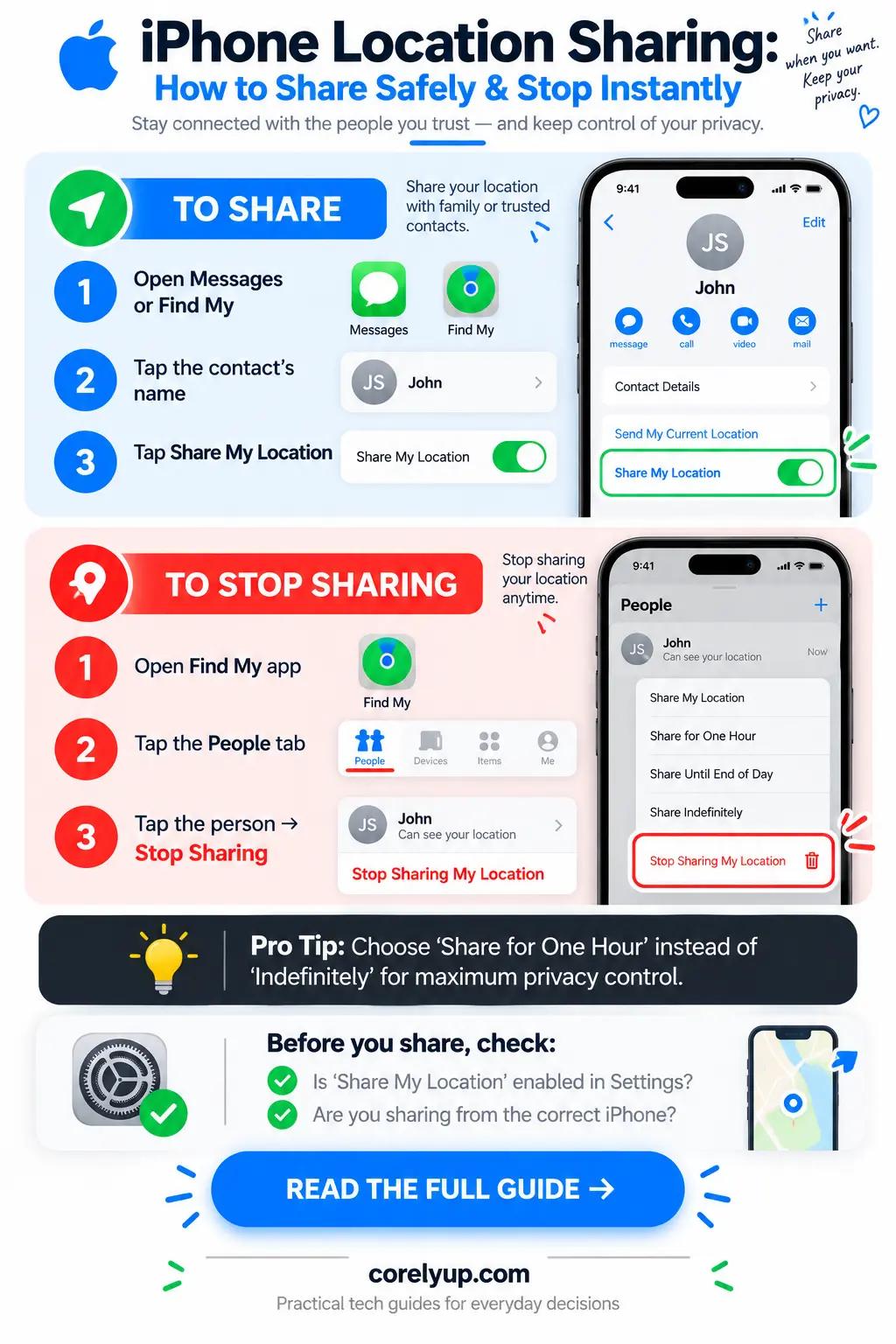
How do you share your location on an iPhone—and stop sharing it whenever you want?
To share your live location on an iPhone, open the Find My app, tap the People tab, tap the + (Add) button, select Share My Location, choose a contact, and pick Share for One Hour, Share Until End of Day, or Share Indefinitely. If you only want to notify a friend or family member when you arrive safely at a destination (without giving them continuous 24/7 map access), open Messages, tap the + button next to the text box, and choose Check In. To stop sharing your location at any time, open Find My > People, tap the person's name, and tap Stop Sharing My Location—or run an instant account-wide audit in Settings > Privacy & Security > Safety Check.
If you share an Apple Family plan with your household, remember that location sharing is completely separate from your storage and photo settings, as explained in our guide on whether iCloud Family Sharing exposes your photos or files.
Compare the 4 ways to share your location on iPhone
Instead of leaving "Share Indefinitely" turned on for everyone in your contacts list, match the sharing method documented in Apple's iPhone Location Sharing guide to the exact situation:
| iPhone Location Method | Duration Options | Who Can Use It? | Does Stopping Notify the Other Person? | Best Everyday Use Case |
|---|---|---|---|---|
| 1. Find My App (People tab) | 1 Hour, Until End of Day, or Indefinitely | Other iPhone, iPad, or Mac users (signed into Apple Account) | No alert banner, though an iMessage thread may show a small gray "Stopped Sharing Location" status line if previously started in Messages | Immediate family members or partners who share ongoing household location |
| 2. Messages App (+ > Location) | 1 Hour, Until End of Day, or Indefinitely (plus static Send Pin) | Other iMessage (Apple) users; static map pin works via SMS/RCS | Shows a subtle gray status line in the conversation transcript when sharing starts or ends | Meeting a friend at a crowded park, airport pickup, or weekend group trip |
| 3. Messages Check In | Until you arrive at a destination OR after a set timer (e.g., 30 min) | Other iPhone users on iOS 17/18+ | Only alerts them if you do NOT arrive or fail to respond to the prompt | Walking home at night, solo runs, first dates, or commuting in bad weather |
| 4. Apple Maps (Share ETA) | Until your turn-by-turn navigation ends | Any contact (Apple devices see live map; Android phones receive SMS arrival updates) | Automatically ends the moment you arrive or cancel navigation | Letting someone know when you will pull into the driveway without sharing your full-day location |
Step-by-step: how to share your location in Find My, Messages, or Family Sharing
Option A: Share via the Find My app or Messages
According to Apple's Find My location guide, make sure Location Services is enabled first (Settings > Privacy & Security > Location Services > Share My Location > On), then:
In the Find My app: Tap the People tab at the bottom > tap + > tap Share My Location > type the person's name or phone number > tap Send > choose Share for One Hour, Share Until End of Day, or Share Indefinitely.
Inside an iMessage chat: Open the conversation in Messages > tap the + button to the left of the text field > tap Location > choose Share (live duration) or Pin (sends a one-time static map pin of where you are standing right now, which never tracks you after you walk away).
Option B: Share with family members in Apple Family Sharing
If you belong to an Apple Family Sharing group:
Open Settings > Family > Location Sharing.
Toggle Automatically Share Location on or off (this controls whether your location is automatically shared with new family members who join the group later).
Below that, tap any individual family member's name to turn location sharing On or Off for that specific person.
Verify which device is broadcasting your location (iPhone vs. iPad)
A classic confusion happens when a family member thinks you are at home because your iPad is sitting on the couch while you are out with your iPhone. Open Settings > [Your Name] > Find My and check the line labeled My Location. If it says another device, tap Use This iPhone as My Location.
How to stop sharing your location on iPhone (3 methods)
Whether a trip ended or you are auditing your personal privacy, you can revoke location access in seconds:
Stop sharing with one specific person: Open the Find My app > tap the People tab > tap the person's name > scroll to the bottom and tap Stop Sharing My Location.
Stop sharing with EVERYONE at once (Master Switch): Go to Settings > Privacy & Security > Location Services > Share My Location and toggle Share My Location to Off. This pauses your live location for all contacts and family members simultaneously until you turn it back on.
Run Apple's built-in "Safety Check" (Best for full privacy audits): Go to Settings > Privacy & Security > Safety Check (available on iOS 16, 17, 18, and later).
Tap Manage Sharing & Access to review every person who can see your Find My location, Shared Photo Library, shared notes, or calendars, plus every app with camera, microphone, or location permissions.
Or tap Emergency Reset to immediately stop sharing your location and data with all people and apps at once and review your Apple Account sign-in security.
Do not forget third-party apps that track location in the background
Even if you turn off Apple's Find My, apps like Google Maps (Location Sharing), WhatsApp (Live Location), Snapchat (Snap Map), Strava, and delivery apps can still access your GPS if you previously granted them "Always" permission.
Open Settings > Privacy & Security > Location Services and scroll through your installed apps:
Change any app set to Always down to While Using the App, Ask Next Time, or Never unless it genuinely requires background GPS.
Toggle Precise Location to Off for weather, news, and retail shopping apps so they only see your general city/neighborhood grid rather than your exact street address.
Protect your Apple Account and Google Account with a unique password from the Secure Password Generator and follow our broader online privacy checklist.