
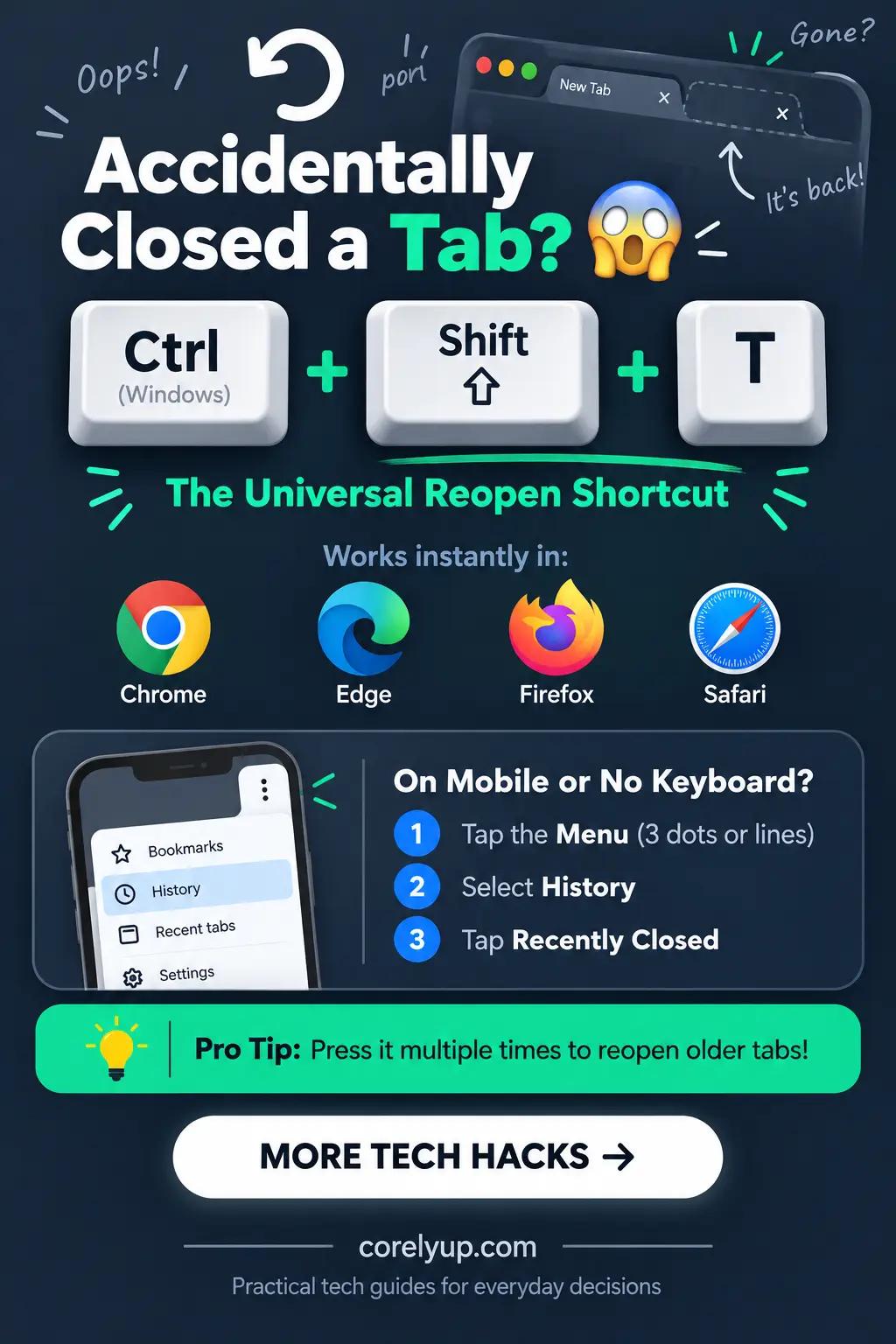
How do you reopen a closed tab immediately?
To reopen the last tab or window you accidentally closed, press Ctrl + Shift + T on Windows, Linux, or ChromeOS, or Cmd + Shift + T on a Mac. This universal keyboard shortcut works across Google Chrome, Microsoft Edge, Mozilla Firefox, Brave, and Opera—and pressing it repeatedly steps backward through your recently closed tabs and multi-tab windows in the exact order they were closed. In Apple Safari on Mac, Cmd + Z (Undo) reopens the single most recently closed tab, while Cmd + Shift + T cycles through older closed tabs.
To prevent losing important research tabs in the first place, save active project windows into a clean folder structure using our guide on how to organize browser bookmarks with a simple 7-folder system and periodically back up your links with how to export Chrome bookmarks.
Quick reference table: shortcuts to reopen closed tabs & windows by browser
Use this table whenever you close a single tab, an entire 20-tab research window, or quit your browser by mistake:
| Browser | Windows / Linux / Chromebook Shortcut | Mac Keyboard Shortcut | How to Reopen via Mouse / Menu | Mobile (iPhone, iPad & Android) Method |
|---|---|---|---|---|
| Google Chrome | Ctrl + Shift + T (press repeatedly for older tabs/windows) | Cmd + Shift + T | Right-click an empty space on the top Tab Bar > Reopen closed tab (or Menu ⋮ > History > Recently closed) | Tap Tabs switcher > Three dots (⋮ / …) > Recent tabs |
| Microsoft Edge | Ctrl + Shift + T | Cmd + Shift + T | Right-click empty Tab Bar > Reopen closed tab (or press Ctrl + H > Recently closed) | Tap Tabs icon > Recent tab at the bottom |
| Mozilla Firefox | Ctrl + Shift + T (Tab) / Ctrl + Shift + N (Window) | Cmd + Shift + T (Tab) / Cmd + Shift + N (Window) | Menu (☰) > History > Recently closed tabs or Recently closed windows | Tap Tabs icon > Three dots (⋮) > Recently closed tabs |
| Apple Safari | N/A | Cmd + Z (last tab) or Cmd + Shift + T (multiple tabs) | History > Reopen Last Closed Tab (or Reopen Last Closed Window / Reopen All Windows from Last Session) | Tap Tabs icon > Touch and hold the + (Plus) button to list closed tabs |
How to restore an entire closed browser window (with all its tabs)
If you accidentally clicked the corner X on a window that had 15 tabs open—or if your computer restarted overnight—do not panic and do not open 15 new blank tabs (which can push your old window further down the recent list):
In Chrome and Microsoft Edge: Press Ctrl + Shift + T (Windows) or Cmd + Shift + T (Mac) right after opening the browser. When the most recent action was closing a whole window, Chrome and Edge display "Reopen closed window" (with a count such as 12 tabs) and restore all tabs and Tab Groups at once. You can also click the Three-dot menu (⋮) > History, hover over the entry reading "[Number] tabs", and click Restore window.
In Mozilla Firefox: Firefox gives closed windows their own dedicated shortcut: press Ctrl + Shift + N on Windows/Linux or Cmd + Shift + N on Mac to reopen the last closed window, or go to Menu (☰) > History > Recently closed windows.
In Apple Safari on Mac: Click History in the top macOS menu bar and select Reopen Last Closed Window (or Reopen All Windows from Last Session if you accidentally quit Safari with Cmd + Q).
How to reopen closed tabs on iPhone, iPad, and Android
Mobile browsers do not have a physical Ctrl + Shift + T key, but every mobile browser keeps a hidden list of recently closed tabs:
Safari on iPhone and iPad: Tap the Tabs button (two overlapping squares in the bottom-right corner), then press and hold the + (Plus) button at the bottom. A pop-up menu titled Recently Closed Tabs will appear—tap any page to reopen it.
Chrome on iPhone, iPad, and Android: Tap the Three-dot menu (⋮ on Android, … on iPhone) and select Recent tabs. Under Recently closed, tap the tab or bulk tab group you want back.
Firefox on iOS and Android: Tap the Three-dot menu > History > Recently Closed Tabs to view and restore closed mobile tabs.
Why Ctrl + Shift + T sometimes stops working (and how to fix it)
If pressing Ctrl + Shift + T or Cmd + Shift + T does nothing, check these four common causes:
You were browsing in Incognito or Private mode: For privacy reasons, Chrome Incognito, Edge InPrivate, Firefox Private Browsing, and Safari Private Windows immediately wipe closed tabs from memory the moment you close them. Neither keyboard shortcuts nor History will recover an Incognito tab.
Your cursor is focused inside a web app or text editor: Some web applications (like Google Docs, Figma, or browser code editors) intercept keyboard shortcuts. Click once on the browser address bar or empty tab strip at the top of the screen, then press Ctrl + Shift + T again.
Your browser is set to "Clear history when browser closes": In Firefox or Edge privacy settings, if "Clear history when browser closes" is checked, your session file is deleted every time you quit the app.
The tab was closed several days ago: The "Recently closed" queue only holds a limited, browser-dependent set of closed tabs and windows. For older pages, press Ctrl + H (Windows) or Cmd + Y (Mac) to open full Browser History and search by keyword or date.
Turn on "Continue where you left off" to help restore tabs after restart
To stop Windows updates, macOS restarts, or dead laptop batteries from wiping out your open tabs, enable automatic session restore once in your browser settings:
Google Chrome: Go to Chrome Startup Settings (Settings > On startup) and select Continue where you left off.
Mozilla Firefox: Go to Settings > General > Startup and check Open previous windows and tabs.
Microsoft Edge: Go to Settings > Start, home, and new tab page and choose Open tabs from the previous session.
Apple Safari (Mac): Go to Safari > Settings > General and set Safari opens with to All non-private windows from last session.
If you keep dozens of tabs open because you are afraid of losing a calculation, draft, or password, offload that work to dedicated local tools: use the Word Counter for quick text drafts, save long-term links in our 7-folder bookmark system, and store logins safely in a family or personal password manager.