
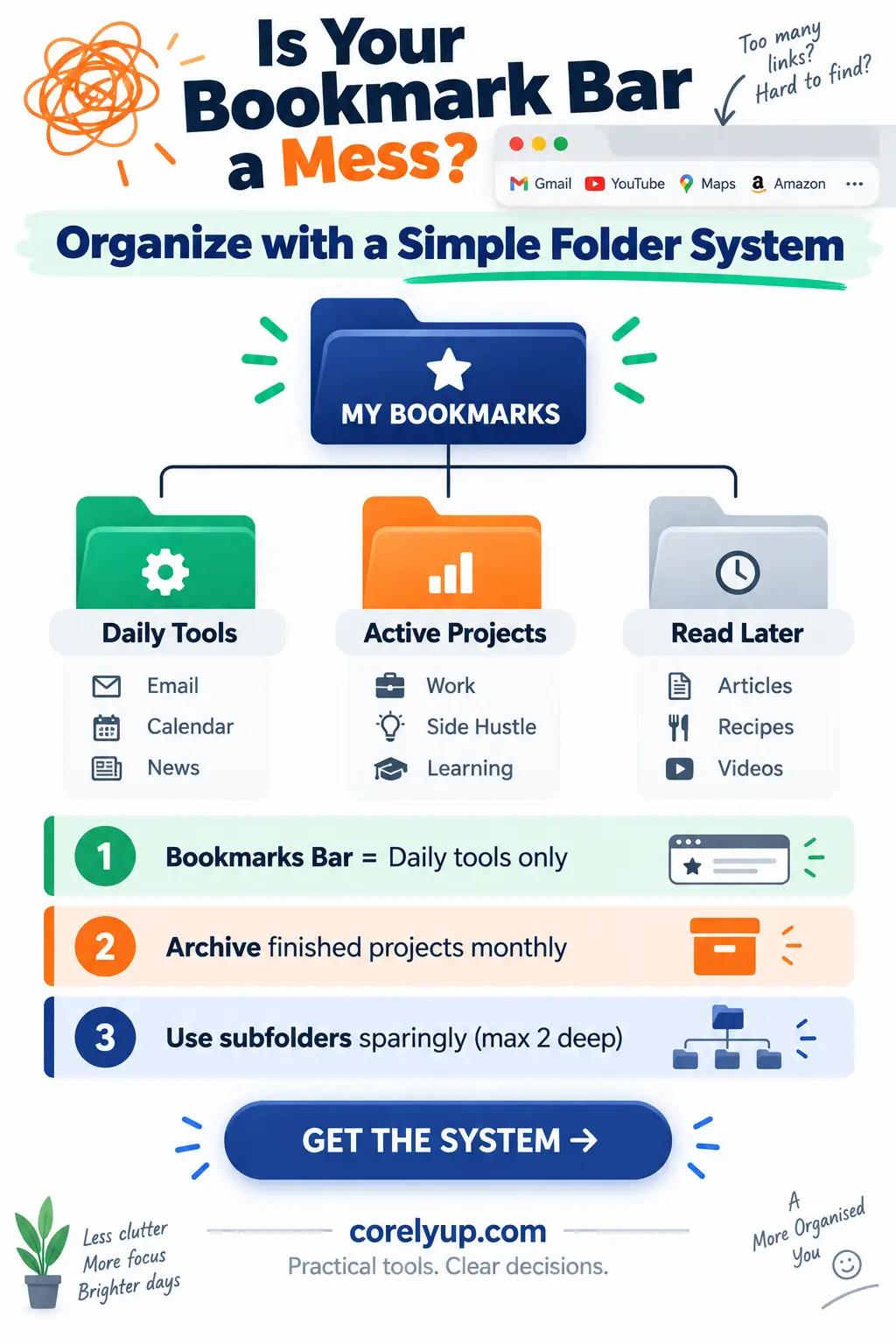
How do you organize browser bookmarks without creating clutter?
The fastest way to organize browser bookmarks is to limit your Bookmarks Bar to 5 to 8 broad top-level folders (Work, Finance, Daily Tools, Projects, Reference, Travel & Shopping, and Read Later), rename links with short action words so they are easy to scan, and keep temporary research inside a dated project folder that you archive or delete once finished. Before deleting or moving hundreds of saved links, always save a 10-second HTML backup using our step-by-step guide on how to export Chrome bookmarks and move them to another computer.
If you accidentally close an active research tab before bookmarking it, you can restore it immediately with Ctrl + Shift + T (Windows/Linux) or Cmd + Shift + T (Mac), as detailed in our guide on how to reopen closed tabs in Chrome, Edge, Firefox, and Safari.
Copy-and-use 7-folder bookmark bar template
A bookmark bar packed with 30 loose icons or nested four levels deep slows you down more than typing into the address bar. Start with these seven predictable top-level folders on your primary Bookmarks Bar (or Favorites Bar):
| Top-Level Folder | What Belongs Inside It | Subfolder Examples | Maintenance Rule |
|---|---|---|---|
| 1. Daily / Quick Launch | Tools and dashboards you open 3+ times a week (keep on the far left of the bar) | None—keep flat (5–8 links max, or favicon-only icons) | Remove any link you haven't clicked in 30 days |
| 2. Work & Admin | Portals, payroll, cloud docs, project trackers, and team directories | Clients, Templates, IT & HR | Audit quarterly when projects wrap up |
| 3. Finance & Bills | Banking, tax portals, insurance, mortgage, and budget calculators | Banking, Taxes, Investments, Utilities | Never save plaintext passwords in bookmark names—use a family or personal password manager |
| 4. Active Projects | Time-bound research with a clear finish line | 2026-10 Kitchen Remodel, Q4 Coursework, Laptop Comparison | Delete or archive into Reference the day the project ends |
| 5. Reference & Utilities | Calculators, converters, official documentation, and government portals | Calculators, Tech Docs, Health & Gov | Bookmark reusable tools like the Percentage Calculator or Unit Converter |
| 6. Travel & Shopping | Wishlists, airline portals, hotel comparisons, and size charts | Upcoming Trips, Gift Ideas, Receipts & Tracking | Clear expired flight/hotel links right after returning home |
| 7. Read Later (Inbox) | Articles, tutorials, and videos you want to review this week | None—keep flat so nothing hides | 7-day rule: Read, move to Reference, or delete every Sunday |
Step-by-step: how to arrange bookmarks in Chrome, Firefox, Edge, and Safari
Instead of dragging bookmarks one by one on the narrow toolbar, open your browser's full-screen Bookmark Manager (where you can select multiple links with Shift + Click or Ctrl/Cmd + Click, sort alphabetically, and search across all folders at once):
| Browser | Keyboard Shortcut to Open Bookmark Manager | Keyboard Shortcut to Toggle Bookmarks Bar | Built-in Bulk Cleanup Feature |
|---|---|---|---|
| Google Chrome | Ctrl + Shift + O (Win) / Cmd + Option + B (Mac) | Ctrl + Shift + B (Win) / Cmd + Shift + B (Mac) | Chrome Bookmark Manager: Three-dot menu > Sort by name + search across all folders |
| Mozilla Firefox | Ctrl + Shift + O (Win) / Cmd + Shift + O (Mac) | Ctrl + Shift + B (Win) / Cmd + Shift + B (Mac) | Firefox Bookmarks Library: Tagging system + automatic JSON bookmark backups |
| Microsoft Edge | Ctrl + Shift + O (Win) / Cmd + Option + B (Mac) | Ctrl + Shift + B (Win) / Cmd + Shift + B (Mac) | Favorites menu > Three dots > Remove duplicate favorites (one-click deduplication) |
| Apple Safari | Ctrl + Cmd + 1 (opens Bookmarks Sidebar on Mac) | Shift + Cmd + B (Mac) | Right-click any folder > Sort By > Name or Address (URL) to spot duplicates side by side |
Step 1: Export a safety backup before deleting anything
Before you bulk-delete old folders, open your Bookmark Manager (Ctrl + Shift + O or Cmd + Option + B), click the top-right Organize (⋮) menu, and select Export bookmarks to save a single .html file to your computer. If you accidentally delete a folder you still needed, you can open that HTML file in any browser tab and click the link without even re-importing it.
Step 2: Strip out dead, duplicate, and one-time links
Select and delete bookmarks that fall into these five categories:
One-time search results: Old weather forecasts, tracking numbers from delivered packages, and one-off news stories.
Homepages you already reach via autocomplete: Typing g + Enter or y + Enter in the address bar is faster than hunting for a Google or YouTube bookmark.
Duplicate bookmarks from old browser imports: If you see two folders named Imported from Firefox or Bookmarks Bar (2), sort by URL or use Edge's Remove duplicate favorites tool to collapse them.
Outdated login redirect URLs: Bookmark the main sign-in page (such as https://mail.google.com/) rather than a 200-character expired session URL (?session_token=...).
Abandoned project folders older than 6 months: Either delete them or export them to an archive HTML file stored in your project folder.
Step 3: Rename bookmarks for instant scanning (plus the Favicon-Only trick)
Websites often stuff 80-character marketing titles into their <title> tags. When you bookmark a page, edit the Name field so the first two words tell you exactly what it is:
For pinned daily icons (Favicon-Only trick): Right-click your top 5–6 daily bookmarks on the far left of your Bookmarks Bar, click Edit, and delete the Name completely (leave the Name field blank). Your browser will display only the compact website icon, fitting 6 sites in the space of 1 text label.
For folders and reference links: Avoid vague names like Misc, Stuff, Useful, or Links. Use clear action or topic prefixes such as Tax — IRS Account, Calc — CorelyUp Days Between Dates, or Docs — Company Style Guide.
Step 4: Use active project folders and useful bookmarklets
When you are researching a major decision—such as comparing mortgage rates with the Mortgage Calculator or shopping using our budget laptop buying guide for college students—create one temporary folder right on your Bookmarks Bar (for example, 2026 Laptop Shortlist).
In Chrome, Firefox, Edge, and Safari, you can save every open tab in your window at once by pressing Ctrl + Shift + D (Windows) or Cmd + Shift + D (Mac) to Bookmark All Tabs into a single dated folder, then close the window to free up system RAM.
What are useful bookmarklets (and how do they work)?
A bookmarklet is a special browser bookmark whose URL starts with javascript: instead of https://. Clicking it runs a short JavaScript command on the page you are currently viewing without installing a heavy browser extension (which can slow down your browser or track your browsing history). Only use bookmarklets whose code you understand; they can access page content or send data elsewhere. Never run unfamiliar code on email, banking or other sensitive pages. You can create a folder named Bookmarklets on your bar for quick tasks such as:
Copy the current page title and URL into your notes.
View page on Internet Archive (Wayback Machine): Jumps straight to cached snapshots if a bookmarked article goes offline (javascript:location.href='https://web.archive.org/web/*/'+location.href).
Count words on a selected block of text: Or paste text directly into the local browser Word Counter without sending your draft to an external server.
The CorelyUp 10-minute bookmark reset routine
If your bookmarks have been accumulating for years, do not spend two hours sorting every single link. Set a 10-minute timer and run this reset:
Minute 1 (Backup): Press Ctrl + Shift + O (Cmd + Option + B on Mac) and export your current bookmarks to bookmarks-backup-2026.html.
Minutes 2–3 (Archive the old chaos): Create a new folder inside "Other Bookmarks" named Archive — Pre-Oct 2026 and drag all of your old, messy Bookmarks Bar items into it. Your Bookmarks Bar is now 100% clean, and zero links were lost—Chrome and Firefox will still search inside that archive folder whenever you type in the address bar!
Minutes 4–6 (Create your 7 core folders): On your freshly cleared Bookmarks Bar, create Daily / Quick Launch, Work, Finance, Active Projects, Reference, Travel & Shopping, and Read Later.
Minutes 7–9 (Promote only what you actually use): Pull only your 15 to 20 most-used current links out of the Archive folder into your new structure.
Minute 10 (Set a 5-minute monthly calendar reminder): On the 1st of each month, empty Read Later, delete finished Active Projects folders, and export a fresh HTML backup.